The Hidden Settings on Your Phone That Are Draining Your Data Plan
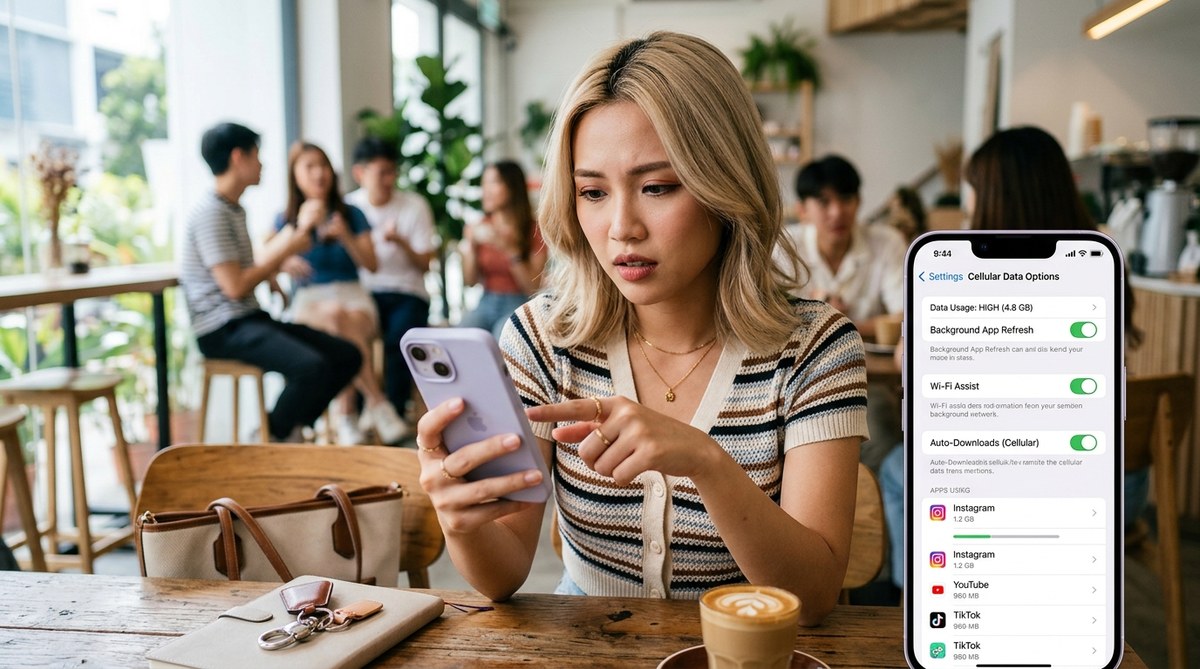
Your phone is a sneaky data eater. You might think you are only using a few hundred megabytes while scrolling through Instagram or sending a few texts. But behind the screen, your phone is constantly syncing photos, downloading app updates, and refreshing widgets. This background data consumption can eat through a 5GB prepaid plan in less than a week. If you are on a limited data plan or a prepaid service, every megabyte counts. The good news is that you can stop most of this waste with a few simple changes. You do not need to be a tech expert to save money on your monthly bill.
Most smartphones waste data by syncing, updating, and refreshing apps in the background without your permission. You can stop this by adjusting a few hidden settings on both Android and iPhone. These changes can cut your monthly data usage by up to 40 percent, which means fewer top-ups and more money in your pocket.
The Usual Suspects: Apps That Drain Data While You Sleep
Some apps are worse than others when it comes to background data usage. Social media platforms, streaming services, and cloud storage apps are the biggest offenders. They constantly refresh feeds, upload new photos, and check for updates. Here is a list of the most common data hogs:
- Instagram and TikTok: They preload videos and refresh your feed even when you are not looking.
- Spotify and Apple Music: They download songs and album art for offline playback.
- Google Photos and iCloud: They automatically back up every photo you take.
- YouTube and Netflix: They buffer content in the background when you have the app open.
- News and weather apps: They refresh data every few minutes to show you the latest headlines and forecasts.
These apps are designed to give you a seamless experience. But that convenience comes at a cost. If you want to stop background data consumption, you need to take control of these apps manually.
How to Reduce Data Usage on Smartphone: A Step-by-Step Guide
You can start saving data right now. The process is slightly different for Android and iPhone, but the logic is the same. Here is a numbered list of actions you can take today.
-
Restrict background data per app on Android. Go to Settings, then Apps, and select the app you want to control. Tap on Mobile data and turn on “Background data” or “Restrict background data.” This stops the app from using data when it is not open.
-
Turn off background app refresh on iPhone. Go to Settings, then Cellular, and scroll down to the list of apps. You can toggle off “Background data” for each app individually. iPhone also has a “Data Saver” mode in the Cellular settings that limits background activity across the board.
-
Disable auto-updates for apps. On Android, open the Google Play Store, tap your profile icon, go to Settings, and turn off “Auto-update apps.” On iPhone, go to Settings, then App Store, and toggle off “App updates.” You can manually update apps when you are on Wi-Fi.
-
Stop photo and video backups. Open your cloud storage app (Google Photos, iCloud, OneDrive) and turn off auto-sync. Choose to sync only when you are connected to Wi-Fi. This single change can save gigabytes of data every month.
-
Use data saver modes in streaming apps. Open Netflix, YouTube, or Spotify, and go to the playback settings. Select “Data saver” or “Low quality” for streaming over mobile data. These settings use significantly less data without ruining your experience.
-
Turn off automatic video preloading. In TikTok and Instagram, go to the settings menu and disable “Preload videos” or “Use less data.” This stops the app from downloading videos you may never watch.
-
Monitor your data usage regularly. Both Android and iPhone have built-in data trackers in the Settings menu. Check them weekly to see which apps are using the most data. You can then adjust settings for those specific apps.
The Biggest Data Wasting Mistakes You Are Probably Making
Many people think they are being careful with their data, but they fall into common traps. The table below shows the difference between what people think saves data and what actually works.
| Common Mistake | Why It Does Not Work | What Actually Helps |
|---|---|---|
| Closing apps from the recent apps menu | Apps still run in the background unless you force stop them | Use the Settings menu to restrict background data per app |
| Turning off mobile data when not using the phone | Your phone still uses data for system updates and syncing | Enable airplane mode or turn off cellular data completely |
| Deleting apps you do not use | Deleted apps do not drain data, but the ones you keep still do | Adjust settings inside the apps you use daily |
| Using a VPN to save data | VPNs actually use more data because of encryption overhead | Use a data saver mode in your browser or streaming apps |
| Relying on free Wi-Fi for everything | Public Wi-Fi is not always secure and can use more data for reconnections | Download content on Wi-Fi and turn off mobile data when at home |
Expert Advice on Keeping Your Data Plan Under Control
“Most people do not realize that their phone is constantly talking to the internet. Every time an app checks for updates or syncs a file, it uses a small amount of data. These small amounts add up quickly. The easiest fix is to turn off background data for apps you do not need running all the time. You will not miss any notifications, and your data will last much longer.”
Sarah Kim, mobile technology analyst at TechSavvy
This advice is spot on. The apps you use most often are the ones that drain the most data. If you can limit their background activity, you will see a noticeable difference in your monthly usage.
How to Set Up Data Alerts and Avoid Surprise Bills
You should not have to check your data balance every day. Both Android and iPhone allow you to set up data usage alerts. On Android, go to Settings, then Network & Internet, and select “Data usage.” You can set a monthly limit and receive a notification when you reach a certain percentage. On iPhone, go to Settings, then Cellular, and tap on “Data limit.” You can set a hard cap that stops data usage once you hit the limit. This is especially useful if you are on a prepaid plan and do not want to accidentally overuse your data.
The Hidden Settings That Make a Big Difference
There are a few settings that are not obvious but can save a lot of data. On Android, you can enable “Data Saver” in the Chrome browser. This compresses web pages and reduces image quality to use less data. On iPhone, you can turn on “Low Data Mode” in the Settings menu. This mode pauses automatic downloads and background syncing for all apps. Another hidden setting is the “Video autoplay” toggle in social media apps. Turning this off stops videos from playing automatically, which saves a significant amount of data over a month.
When to Use Wi-Fi and When to Rely on Mobile Data
The best strategy is to use Wi-Fi for anything that uses a lot of data. Download apps, update your phone, and stream movies only when you are connected to Wi-Fi. Save your mobile data for things you need on the go, like maps, messaging, and light browsing. If you are at home or in a dorm, make sure your phone is set to prefer Wi-Fi over mobile data. You can do this by turning off cellular data in the quick settings panel. This simple habit can cut your mobile data usage by more than half.
Your Data Plan Will Thank You
Making these changes does not take long. Spend ten minutes right now going through your phone settings. Turn off background data for your biggest data hogs. Disable auto-updates for apps. Set up data alerts so you never get surprised by a bill. Your wallet will thank you at the end of the month. And you will have more data left for the things that actually matter, like streaming your favorite show or video calling your friends. Start with the settings that are easiest to change, and work your way through the list. You will notice the difference within a few days.











Post Comment