Your Old Laptop Is Slowing You Down: Simple Upgrades That Make It Feel Brand New
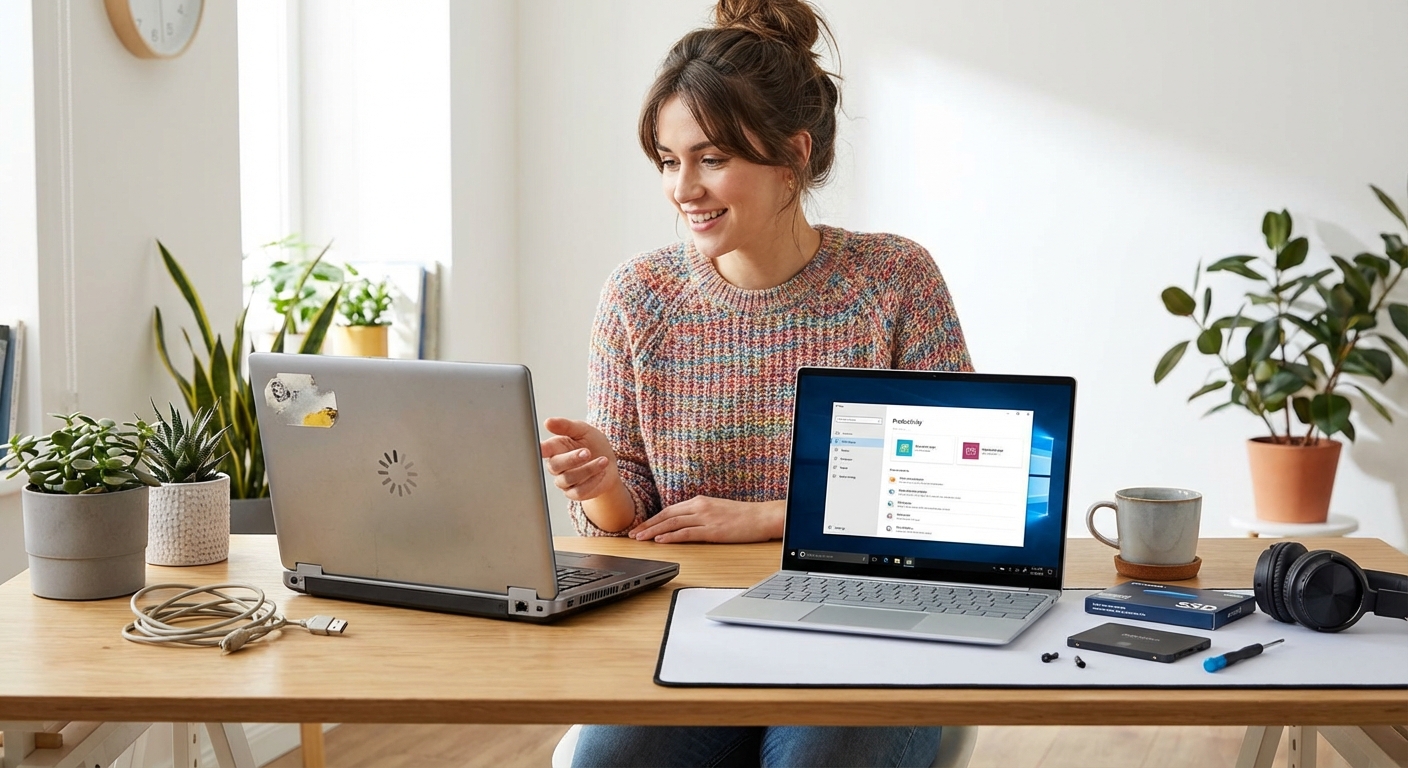
Your laptop takes five minutes to boot up. Apps freeze when you’re rushing to finish an assignment. Streaming the latest K-drama becomes a buffering nightmare. You’re convinced it’s time for a new machine, but your budget says otherwise.
Most slow laptops don’t need replacing. Simple software cleanup, startup optimization, and affordable hardware upgrades like adding RAM or switching to an SSD can dramatically improve performance. These DIY fixes cost far less than a new device and can add years to your laptop’s usable life without requiring technical expertise.
Why Your Laptop Slows Down Over Time
Laptops don’t just get old and tired. Specific things cause the slowdown.
Your hard drive fills up with files, apps, and system updates. Each program you install might add startup processes that run in the background. Dust accumulates inside, blocking airflow and causing overheating. Your operating system gets bloated with temporary files and outdated software.
None of this means your laptop is broken. It just needs maintenance.
Think of it like a bedroom that gets messier over time. You wouldn’t throw out the whole room. You’d clean it up, reorganize, and maybe upgrade a few things.
Software Fixes That Cost Nothing

Before spending money on hardware, try these free solutions. They solve most performance issues.
Clean Up Your Storage
Full hard drives slow everything down. Your system needs at least 15% free space to run smoothly.
Start by deleting files you don’t need anymore. Old assignments from last semester. Screenshots you took once and forgot about. Downloaded movies you’ve already watched.
Use your operating system’s built-in storage analyzer to find what’s eating up space. On Windows, search for “Storage settings.” On Mac, click the Apple menu and select “About This Mac,” then “Storage.”
Look for these common space hogs:
- Downloads folder filled with forgotten files
- Duplicate photos and videos
- Old installers for programs you already set up
- Browser cache that’s grown massive over months
- Temporary files your system no longer needs
Delete what you don’t need. Move important files to cloud storage or an external drive.
Disable Startup Programs
Every app that launches when you turn on your laptop adds to boot time and uses memory constantly.
Most programs don’t need to start automatically. You can launch them when you actually need them.
On Windows, press Ctrl + Shift + Esc to open Task Manager. Click the “Startup” tab. You’ll see everything that runs when your laptop boots up. Right-click programs you don’t need immediately and select “Disable.”
On Mac, go to System Preferences, then “Users & Groups.” Click your username, then the “Login Items” tab. Select unnecessary apps and click the minus button.
Keep security software and essential drivers enabled. Everything else can wait until you need it.
Uninstall Bloatware and Unused Apps
New laptops come loaded with trial software and manufacturer apps you never asked for. Over time, you’ve probably installed apps you used once and abandoned.
Each one takes up storage and might run background processes.
Go through your installed programs. Be ruthless. If you haven’t used it in three months, you probably don’t need it.
On Windows, go to Settings, then “Apps.” Scroll through and uninstall anything unfamiliar or unused.
On Mac, open Finder and go to the Applications folder. Drag unwanted apps to the Trash, then empty it.
Update Your Operating System and Drivers
This sounds counterintuitive. Won’t updates make things slower?
Sometimes older updates had bugs that caused performance issues. Newer versions often include fixes that actually speed things up. Security patches also protect against malware that could be slowing your system.
Check for updates and install them. Just make sure you have enough storage space first.
Driver updates matter too, especially for graphics and storage controllers. Outdated drivers can cause crashes and slowdowns.
Hardware Upgrades That Make a Real Difference
If software fixes don’t solve the problem, affordable hardware upgrades can transform your laptop’s performance.
Add More RAM
RAM (Random Access Memory) is your laptop’s short-term memory. It holds information for programs you’re currently using.
When you run out of RAM, your laptop starts using the hard drive as backup memory. Hard drives are much slower, causing everything to lag.
Most older laptops came with 4GB of RAM. That was fine five years ago. Now, with modern apps and multiple browser tabs, 8GB is the minimum for comfortable use.
Check how much RAM you have. On Windows, right-click the Start button and select “System.” On Mac, click the Apple menu, then “About This Mac.”
If you have 4GB or less, upgrading to 8GB will make a noticeable difference. Going to 16GB helps if you multitask heavily or use demanding apps.
Not all laptops let you upgrade RAM. Ultrabooks and newer MacBooks often have memory soldered to the motherboard. Check your laptop model online before buying RAM.
Installing RAM is usually simple:
- Find your laptop’s RAM slots (usually under a panel on the bottom)
- Ground yourself by touching something metal to avoid static electricity
- Remove the old RAM by pushing the clips on each side
- Insert the new RAM at a 45-degree angle, then press down until it clicks
Switch to an SSD
This is the single biggest upgrade you can make.
Traditional hard drives (HDDs) use spinning disks to read and write data. They’re slow, especially after years of use.
Solid-state drives (SSDs) have no moving parts. They read and write data electronically, making them dramatically faster.
Switching from an HDD to an SSD can make your laptop feel like a completely different machine. Boot times drop from minutes to seconds. Apps launch instantly. File transfers happen in a fraction of the time.
SSDs cost more per gigabyte than HDDs, but prices have dropped significantly. A 256GB SSD costs around the same as a movie ticket and popcorn these days.
You have two options:
Replace your main drive: Remove your old HDD and install an SSD in its place. You’ll need to reinstall your operating system or clone your old drive.
Add an SSD alongside your HDD: Some laptops have space for a second drive or an M.2 slot. You can install the SSD for your operating system and keep the HDD for storage.
Replacing the main drive requires a bit more work but delivers the best results. Look up a tutorial for your specific laptop model. Most are easier than you’d think.
Clean Out Dust and Improve Cooling
Laptops suck in air to cool their components. Over time, dust builds up inside, blocking vents and coating fans.
When components overheat, they automatically slow down to prevent damage. This is called thermal throttling.
Cleaning out dust can restore normal performance without spending anything.
You’ll need compressed air. Turn off your laptop and unplug it. Spray short bursts into the vents. Don’t hold the can upside down.
For a deeper clean, you can open the bottom panel and carefully clean the fans and heatsinks. Be gentle. Don’t touch components with your fingers.
If you’re not comfortable opening your laptop, take it to a repair shop. Cleaning services are usually inexpensive.
Comparing Your Options
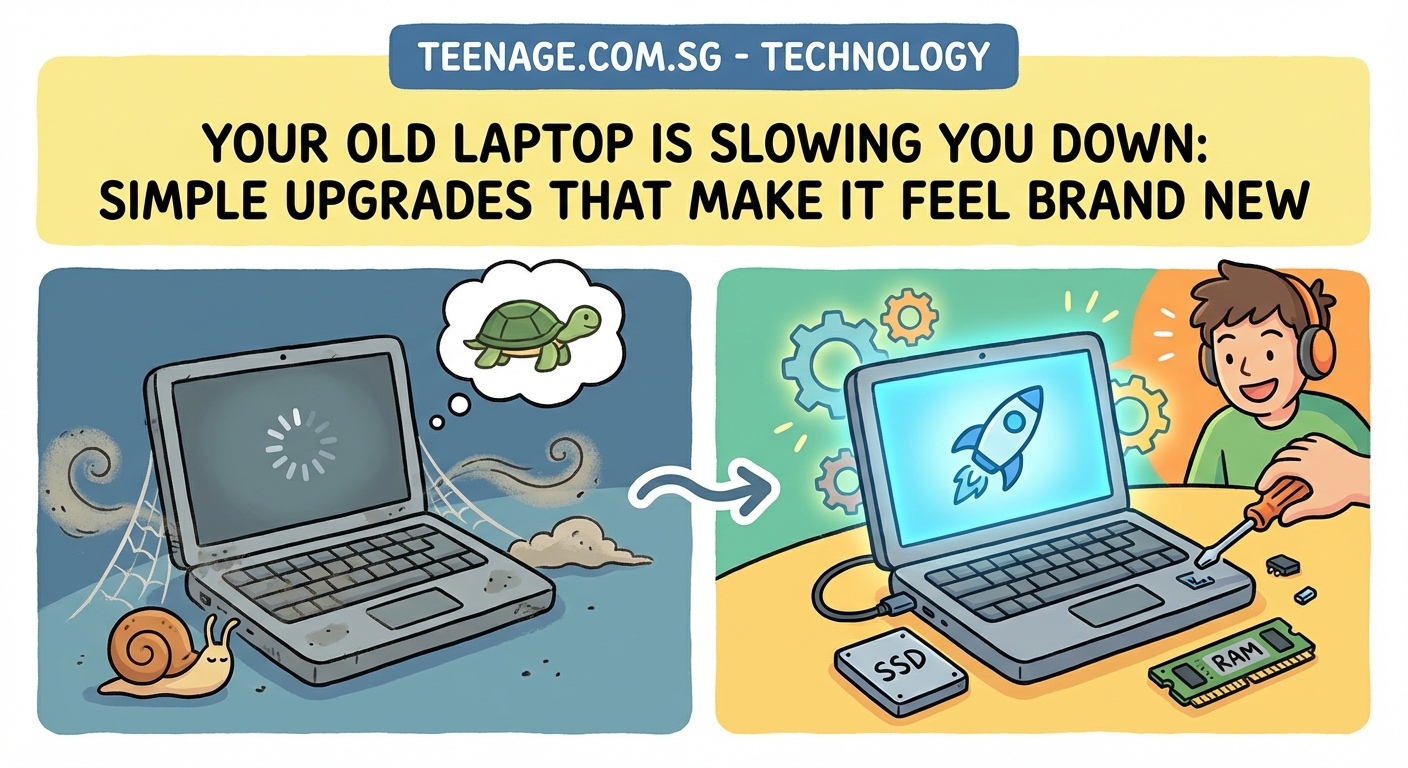
Here’s how different solutions stack up:
| Solution | Cost | Difficulty | Impact on Speed | Best For |
|---|---|---|---|---|
| Delete files and apps | Free | Easy | Low to Medium | Full hard drives |
| Disable startup programs | Free | Easy | Medium | Slow boot times |
| Add RAM | $30-80 | Medium | High | Multitasking, many tabs |
| Install SSD | $40-150 | Medium | Very High | Overall sluggishness |
| Clean dust | $5-30 | Easy to Medium | Medium | Overheating, loud fans |
| Fresh OS install | Free | Hard | High | Severe software bloat |
Common Mistakes to Avoid
Don’t fall into these traps when trying to speed up your laptop.
Mistake 1: Installing “PC optimizer” software
These programs promise to clean and speed up your computer. Most are useless at best, harmful at worst. They often install more bloatware while claiming to remove it.
Your operating system has built-in tools that work better and won’t mess things up.
Mistake 2: Buying incompatible RAM or storage
Not all RAM fits all laptops. DDR3 and DDR4 aren’t interchangeable. Speed ratings matter. Physical size matters.
Check your laptop’s specifications before buying. Look up your exact model number online or use tools like Crucial’s System Scanner.
Mistake 3: Ignoring backups
Before making any hardware changes or doing a fresh install, back up your important files.
External drives are cheap. Cloud storage is often free for basic amounts. Losing your files because you skipped this step isn’t worth it.
Mistake 4: Expecting miracles from ancient hardware
These upgrades help, but they can’t turn a 10-year-old laptop into a gaming machine.
If your laptop has a very old processor or can’t run current operating systems, upgrades have limits. Set realistic expectations.
“The cheapest upgrade is often the most effective one. I’ve seen laptops go from unusable to perfectly functional just by swapping in an SSD. People are amazed at the difference. It’s like getting a new laptop for a fraction of the price.” – Computer repair technician with 12 years of experience
When to Consider a Fresh Start
Sometimes your laptop needs more than cleanup and upgrades.
If you’ve accumulated years of software installations, registry changes, and system tweaks, a fresh operating system install might be the answer.
This wipes everything and gives you a clean slate. Your laptop will run like it did when new.
Before doing this, make absolutely sure you’ve backed up everything important. You’ll lose all your files, programs, and settings.
You’ll also need installation media for your operating system. Windows users can create this using Microsoft’s Media Creation Tool. Mac users can reinstall through Recovery Mode.
A fresh install takes time to set up again, but it removes every trace of bloat and corruption that’s built up over the years.
Making Your Laptop Last Longer
Once you’ve sped up your laptop, keep it running well with these habits.
Restart regularly instead of just closing the lid. This clears memory and stops processes from piling up.
Keep storage above 15% free. Delete or move files when you get close to full.
Run antivirus scans occasionally. Malware can slow things down without obvious symptoms.
Update software when prompted. Security patches and bug fixes prevent problems.
Clean vents every few months. A can of compressed air costs less than a coffee and prevents overheating.
Close browser tabs you’re not using. Each one uses memory, especially on sites with video or animations.
Avoid eating or drinking near your laptop. Crumbs and spills cause more damage than you’d think.
Getting More Life From What You Have
You don’t need the latest model to get work done, finish assignments, or enjoy entertainment. Most people use their laptops for web browsing, documents, streaming, and social media. A properly maintained older laptop handles all of that fine.
The money you save by upgrading instead of replacing could go toward things that actually matter to you. Maybe new outfits for the semester. Concert tickets. Saving for something bigger.
Plus, keeping electronics in use longer is better for the environment. Manufacturing new devices takes resources and energy. Extending your laptop’s life by even one year makes a difference.
Start with the free fixes. They solve most problems and cost you nothing but time. If you need more speed after that, a small investment in RAM or an SSD delivers results that feel like magic.
Your old laptop has more life left than you think. Give it the care it needs, and it’ll keep serving you well while you focus on the stuff that actually matters, like finally getting enough sleep instead of scrolling until 3 AM.














Post Comment